

Appearance
Notify and Ask Users
Some workflows need a human in the loop. A Platform User Task pauses your workflow to ask a person a question — a yes/no decision or a free-text answer — or simply notifies them that something happened. The person is reached in the platform's in-app notification panel; when the task expects an answer, the workflow waits until they respond, then continues with their answer available as a workflow variable.
When to use one
- Ask for a decision before an expensive or irreversible step — for example, "Route this workload to IBM Miami?" before dispatching a paid backend run.
- Collect a short text answer mid-workflow — an override value, a reason, a justification.
- Inform a user that a milestone was reached, with no answer expected.
Response types
A Platform User Task has one of three response types. The response type decides both what the recipient sees and whether the workflow waits.
| Response type | Recipient sees | Workflow behaviour | Captured answer |
|---|---|---|---|
DECISION | Yes / No buttons | Waits for the answer | Boolean (true/false) |
FREE_TEXT | A text box (up to 4000 chars) | Waits for the answer | String |
NONE | An informational message only | Does not wait — continues immediately | Nothing |
DECISION and FREE_TEXT are blocking: the workflow parks at the task until someone answers. NONE is fire-and-forget: the message is delivered and the workflow moves on without pausing.
Who receives it
You do not choose the recipient. A Platform User Task always goes to the tenant that is running the workflow — the same account (user or organization) that started the execution. For an organization, every active member receives it and any authorised member can answer; the first answer completes the task.
This is deliberate: the recipient is derived by the platform and cannot be redirected by the workflow, so a workflow can never send notifications or blocking tasks to an unrelated user or organization.
Authoring in the workflow modeler
A Platform User Task is a BPMN User Task carrying platform configuration.
From the palette, drag a User Task onto the canvas and connect it into your flow.
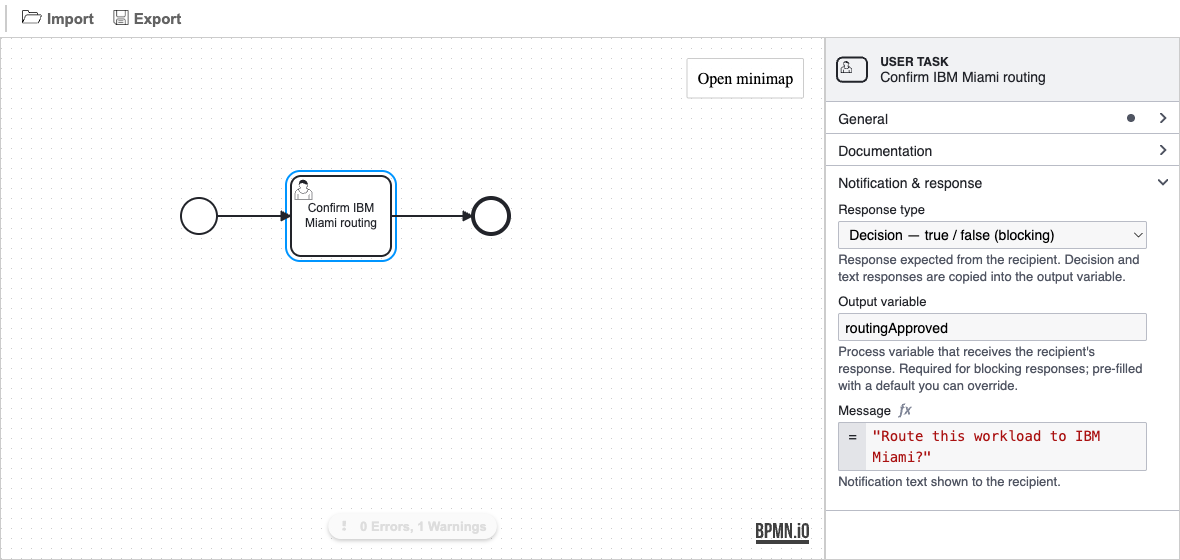
Select it and open the properties panel. A plain user task shows a Configure as Platform User Task call-to-action — the platform runtime ignores user tasks that are not configured.
Fill in the Notification & response group:
Field What it is Message The text the recipient reads. A FEEL expression — see Writing the message. Response type DECISION,FREE_TEXT, orNONE.Output variable The workflow variable that will hold the answer (blocking types only; disabled for NONE).
A freshly dropped task defaults to DECISION with a starter message and a pre-filled output variable, so it is runnable immediately — adjust the fields to your case.
No recipient field
There is no recipient setting. The task is always delivered to the tenant running the workflow (see Who receives it).
Writing the message
The Message field is a FEEL expression evaluated against your workflow variables just before the notification is sent, so the recipient sees concrete values.
javascript
= "Route " + workloadName + " to IBM Miami?"A constant message is simply a quoted string literal — bare unquoted text is not valid FEEL:
javascript
= "Please review and confirm before we continue."Plain text only
The message is rendered as plain text. HTML or markup is rejected — keep the message to words, not tags.
Escalation is optional
A blocking Platform User Task with no one to answer it will wait indefinitely. The modeler warns you when a blocking task has no escalation path but does not force one. To bound the wait, attach a Timer Boundary Event to the task and route it to a fallback path (a default value, an alternate branch, or a failure end event). NONE tasks never wait, so they need no escalation.
What the recipient sees
The task arrives in the recipient's in-app notification panel (the bell menu and the notifications page).
DECISIONshows Yes and No buttons directly in the notification.FREE_TEXTshows a text box with a Submit button (up to 4000 characters).NONEshows the message as a plain informational entry the user reads and dismisses.
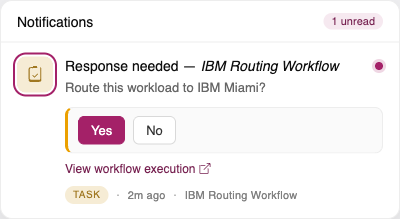
For blocking tasks, a View workflow link is shown when the recipient is allowed to monitor the underlying execution, so they can open the running workflow for context before answering. Once anyone answers (or the task is cancelled or times out), the response controls disappear.
Using the answer downstream
For blocking tasks, the answer lands in the output variable you named and is available to every element after the task. The type follows the response type: DECISION yields a Boolean, FREE_TEXT yields a String.
Branch on a DECISION answer with an Exclusive Gateway — set conditions on its outgoing sequence flows:
javascript
= routingApproved = true
= routingApproved = false
Read a FREE_TEXT answer like any other workflow variable in a later task's input mapping or a gateway condition.
Pick a non-reserved output variable name
The output variable follows the same naming rules as workflow output mappings. A handful of names are reserved by the runtime — see Reserved workflow output variable names.
Monitoring
Platform User Tasks appear on the workflow monitoring view like any other activity. A task waiting for an answer is shown as running; its detail panel shows the status, timing, and — once answered — the captured response. A NONE task shows "Notification only (no response)".
Related topics
- Common Workflow Compositions — where a human decision fits among fan-out, pipeline, and conditional patterns.
- Handling Errors in Workflow Services — escalation paths and reserved output variable names.
- Data Manipulation — FEEL expressions for the message and for reading the answer.